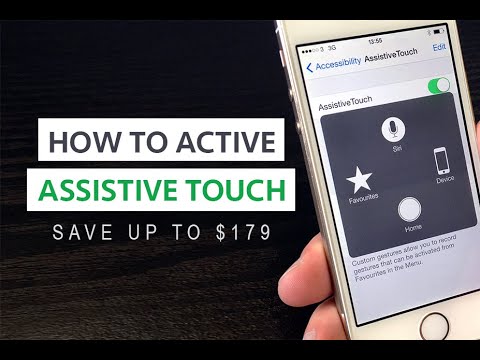
1.Open the “Settings” app in iOS.
2.Go to “Accessibility” (new iOS versions) or to “General”
3.Now go to “Accessibility” (older iOS settings)
4.Tap on “AssistiveTouch”.
5.Toggle the “Assistive Touch” switch to the ON position.
6.Next, choose “Single-Tap”.
7. From the Single-Tap options select “Home” as the single tap action item for Assistive Touch.
8. Drag to position the Assistive Touch virtual button
9.By default it’s in the upper right corner of the screen, to mimic an onscreen Home button drag it to the bottom middle of the screen, or the position of your choice.
10. Now you can tap the onscreen virtual Home button to mimic a real Home button, it will perform the same actions as you’d expect, like returning to the iOS Home Screen from any app
Please visit my youtube channel HarryBCreativeMinds Channel to watch the full video.
Leave a Reply